


Applies to: BI 4.3, BI 2025 · Reading time: 9 min
In short. Two requests come up as soon as a Webi estate is in place: “I want my reports on my phone” and “I want to see them in our SharePoint intranet”. SAP answered the first by discontinuing its mobile app with BI 2025 and betting on the browser: a responsive Webi interface since BI 4.3 SP03, OpenDocument links, and WIDX for offline. For the second, there has been no native SharePoint integration for a long time; everything goes through embedded OpenDocument links (iframe, web part) with properly configured SSO, or through HTML exports dropped in a library. This guide details what works, under which conditions, and where native stops.
Webi on mobile: what has changed
The SAP BusinessObjects Mobile app is discontinued
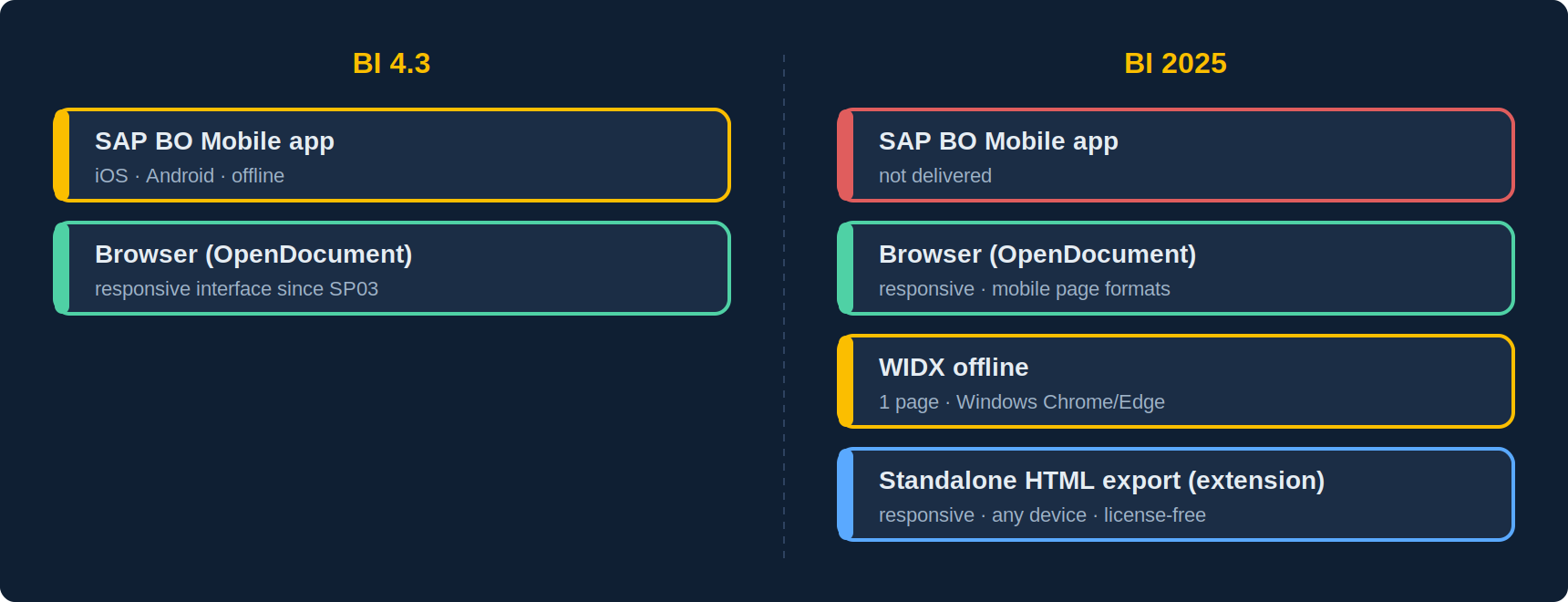
Launched in 2011, the iOS and Android app let users view Webi and Crystal documents online and offline, with annotations and alerts. SAP announced it would not be delivered with BI 2025: it remains usable with BI 4.3, but has no future. The official alternatives are the phone’s browser and, for offline, the WIDX format.
The mobile browser and the responsive interface
Since BI 4.3 SP03, Web Intelligence offers a responsive reading interface: opened from Safari or Chrome on a phone through an OpenDocument link, it adapts the toolbar, prompts and navigation to the screen. Drill and hyperlinks work in connected mode, as do annotations and comments. What does not adapt is the content: a report designed at 1,280 px wide remains a 1,280 px report you scroll through. BI 2025 adds predefined page formats (phone and tablet screens) to design a report at the right size from the start.
What is no longer possible
- Scheduling to the device: sending instances straight into the app no longer exists; email scheduling with a PDF or an OpenDocument link replaces it.
- Interactive offline: only WIDX allows it, within its current limits (one report, first page, new elements, Windows Chrome/Edge viewing, so not on a phone for now). See our WIDX article.
- Push notifications and kiosk mode of the app.
Designing a report for mobile
- One tab per mobile use, in phone or tablet page format, with 3 to 5 blocks at most.
- Button or short-list input controls rather than sliders, with a default value.
- Optional prompts, or a schedule that fixes them: typing a prompt on a phone is the first cause of drop-off.
- An OpenDocument link bookmarked on the phone’s home screen, with SSO (SAML or trusted authentication) to avoid password entry.
Webi in SharePoint and intranets
There is no native integration anymore
The “Integration Option for Microsoft SharePoint” of the XI 3 era disappeared from the BI 4 platform. Today, integrating Webi into SharePoint (Online or Server), Confluence, Teams or any intranet comes down to one of two mechanisms.
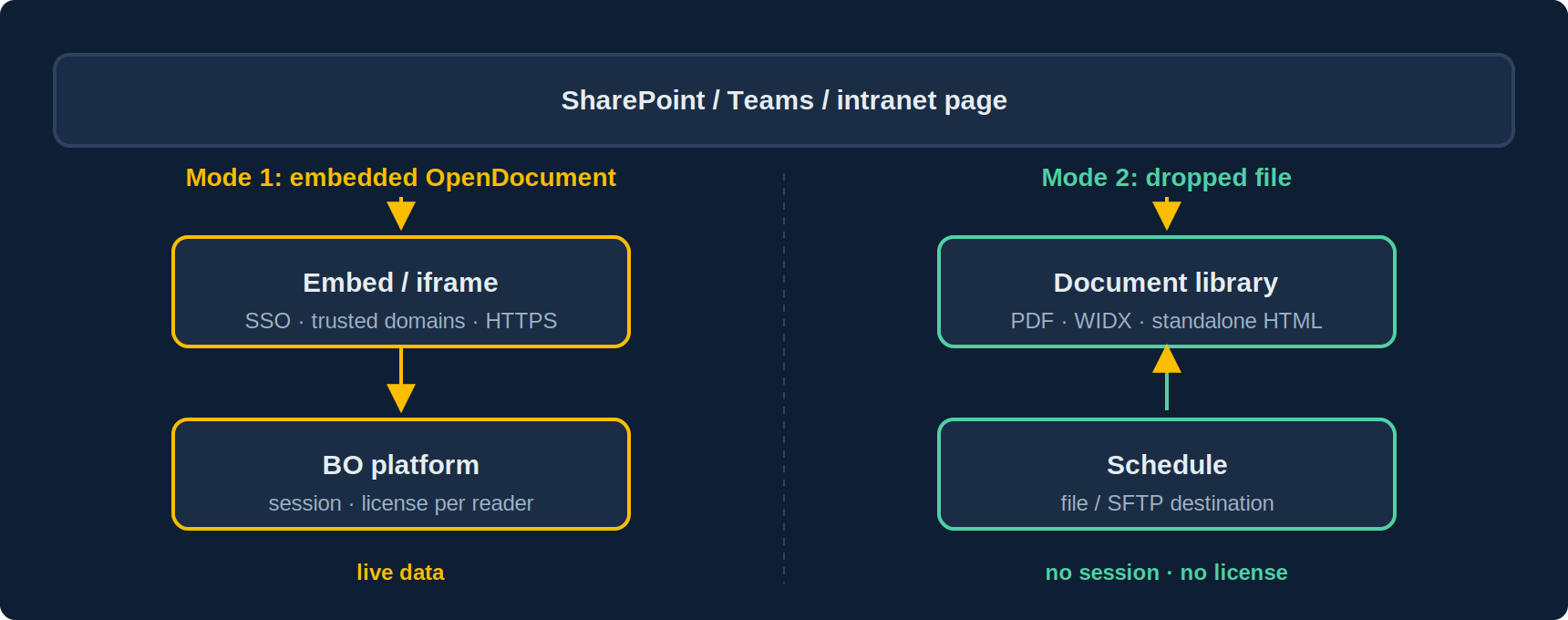
Mode 1: the embedded OpenDocument link
An Embed component (SharePoint Online), a Page Viewer web part (SharePoint Server) or a plain iframe displays the document’s OpenDocument URL. The reader sees the live, refreshable report with its prompts and input controls. Conditions to meet:
- SSO: without single sign-on (SAML to the corporate directory, Kerberos or trusted authentication), the reader sees a BO login page inside the iframe. That is the first friction point.
- Security headers: the BO platform must allow display in an iframe from the intranet’s domain (
X-Frame-Options/Content-Security-Policy frame-ancestorssettings and trusted domains in the CMC). SharePoint Online, for its part, only accepts in the Embed component domains declared in the site’s “HTML field security”. - HTTPS on both sides, otherwise browsers block mixed content.
- One BO license per reader: integration does not change the licensing model, every open consumes a session.
- URL parameters:
sIDType=CUID,sRefresh,lsS/lsMto pass prompts,sReportNameto open a specific tab, so the report opens straight in the right context.
Mode 2: the dropped file
A schedule produces a PDF, an Excel or an HTML export, dropped through a file or SFTP destination into a SharePoint library (or synced through OneDrive). No SSO to configure, no license per reader, no BO session on opening. The trade-off: data is that of the last export, and interactivity depends on the format. In PDF it is nil; in WIDX it is limited to the new elements and to Windows; in standalone HTML produced by an extension, it is complete (filters, drill, responsive) and opens on any device.
Which mode for which case
| Use case | Recommendation | Watch point |
|---|---|---|
| Executive checking KPIs on a phone, on the move | Responsive OpenDocument + SSO, report designed in phone format | Avoid prompts |
| Intranet portal for licensed BO users | Embed component / iframe with OpenDocument | SSO and trusted domains |
| Wide distribution to readers with no BO account | Scheduled standalone HTML export in a library | Data freshness = schedule frequency |
| Regulatory report to archive | Scheduled PDF in a library with retention | Page-mode layout |
| Offline viewing (plane, site with no network) | WIDX (BI 2025, one page, Windows) or standalone HTML | Embedded data = protect like a file |
| Dashboard in Teams | “Website” tab to the OpenDocument (SSO), or HTML file in the Files tab | Same iframe constraints as SharePoint Online |
Frequently asked questions
Does the SAP BusinessObjects Mobile app still work with BI 4.3?
Yes, as long as the app version and the phone’s OS are compatible. It is not delivered for BI 2025.
My report in the SharePoint iframe shows a login page: why?
SSO is not in place, or the browser blocks BO session cookies in a third-party context. Check trusted authentication or SAML, and that BO and
👉 Discover Need4Viz and what we really bring to SAP Web Intelligence
Need4Viz extends SAP Web Intelligence with advanced dataviz, interactivity, automation and AI capabilities to transform your reports into real decision-making tools.
Discover Need4Viz